
If you use AI to help write blog posts or create content for your website, you probably know how annoying it is to repeat yourself. Every time you open an AI writer, you have to remind it of the same things:
- “Write in a simple, friendly tone.”
- “Target beginner tech readers.”
- “Keep paragraphs short and easy to read.”
WordPress.com released a new feature called Guidelines so you never have to type those instructions again.
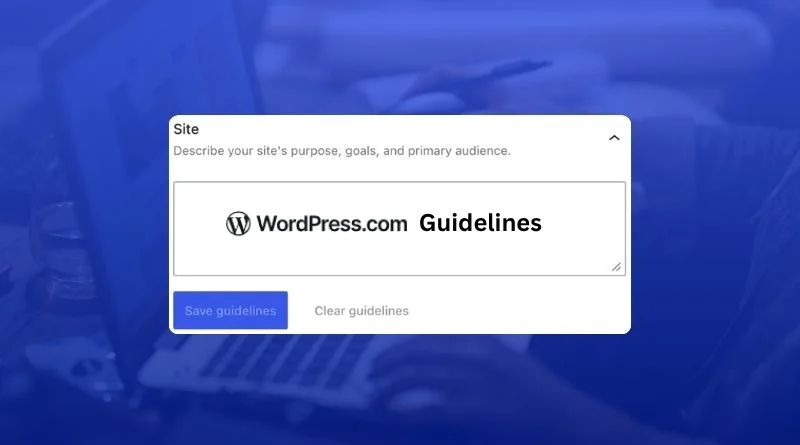
What is WordPress.com Guidelines?
Think of Guidelines as a cheat sheet for your website. You type in your website’s rules once, and save them. From then on, any compatible AI tool on your WordPress.com site automatically reads those rules before writing anything for you.
Here is what you can set up in your Guidelines:
- Purpose & Audience: Who your website is for and what you want to achieve.
- Tone & Writing Style: How you want your text to sound (for example: casual, formal, simple, or professional).
- Image Rules: What kinds of pictures or graphics should be used.
- Custom Rules: Specific guidelines for your blog posts or team.
Why Guidelines Feature Makes Life Easier for Beginners
- Save Time: You won’t need to copy and paste the same prompt instructions every day.
- Automatic Setup: If you already have blog posts on your site, the built-in AI can read them and suggest rules for you automatically. You can accept, edit, or delete any suggestion before saving.
- Easy Transfers: You can export your rules as a single file and import them into another website.
- Safety Net: If you make a mistake, you can undo changes and restore an earlier version.
Which WordPress.com Plans Support This?
Guidelines is available on all paid WordPress.com plans:
This new feature was launched recently, and was really a need of the hour. Things are changing at a record pace in the tech world and to stay relevant in this pacy space, its important to adapt. Great to see WordPress.com working on features like these.
How to Add Guidelines
If you are ready to add the Guidelines to your WordPress.com website, just follow these easy instructions, and you will be good to go:
1. Open your Site dashboard and go to Settings and Navigate to Guidelines.
2. Choose a category to set your rules:
-
-
Site: Describe your website’s main purpose, goals, and who your audience is.
-
Copy: Set standards for your writing style, voice, tone, and formatting.
-
Images: Outline your visual preferences, including photo sizes, formats, mood, and aesthetic.
-
Blocks: Create custom guidelines for specific content blocks.
-
Additional: Add any extra notes or instructions for your team.
-
3. Type your guidelines into the text box.
-
Click Save guidelines to lock them in!
And, thats about it. If you have any doubts, go to this page and watch the video tutorial.